
Stickers
Make sticker cutouts from your photos on iPhone
For printed stickers, sticker sheets, and print-and-cut projects you need a clean, full-resolution transparent PNG of your pet, kid, or product. That’s the part this app makes, privately on your iPhone or iPad.
$3.99 once no subscription no in‑app purchases
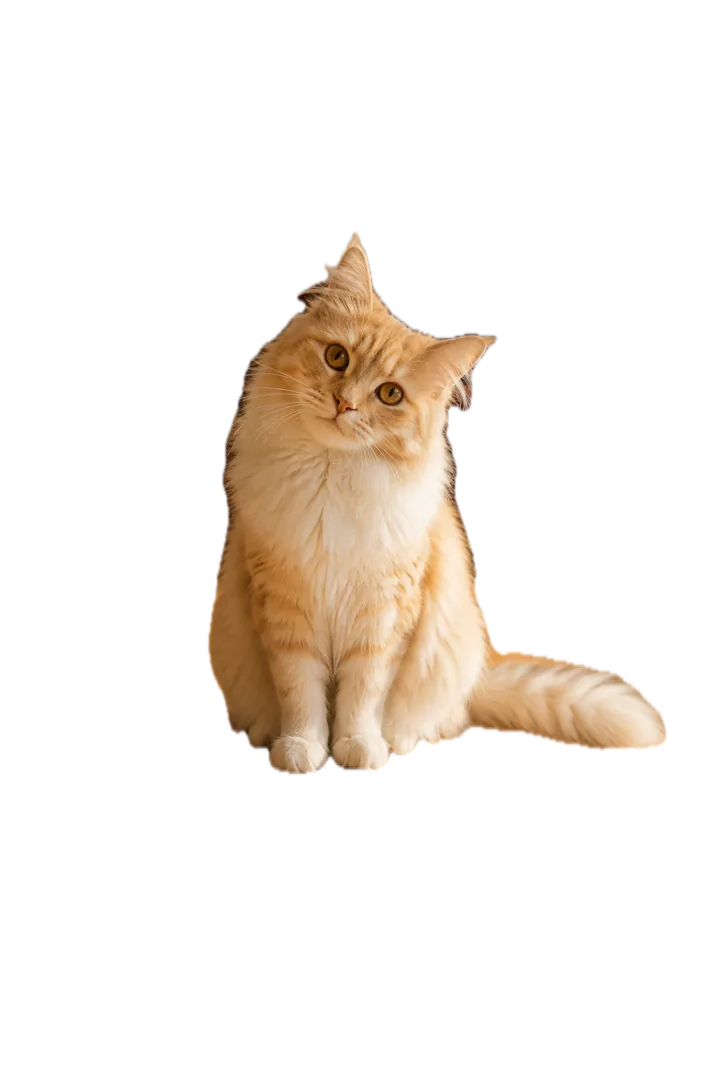 cat.png
 portrait.png
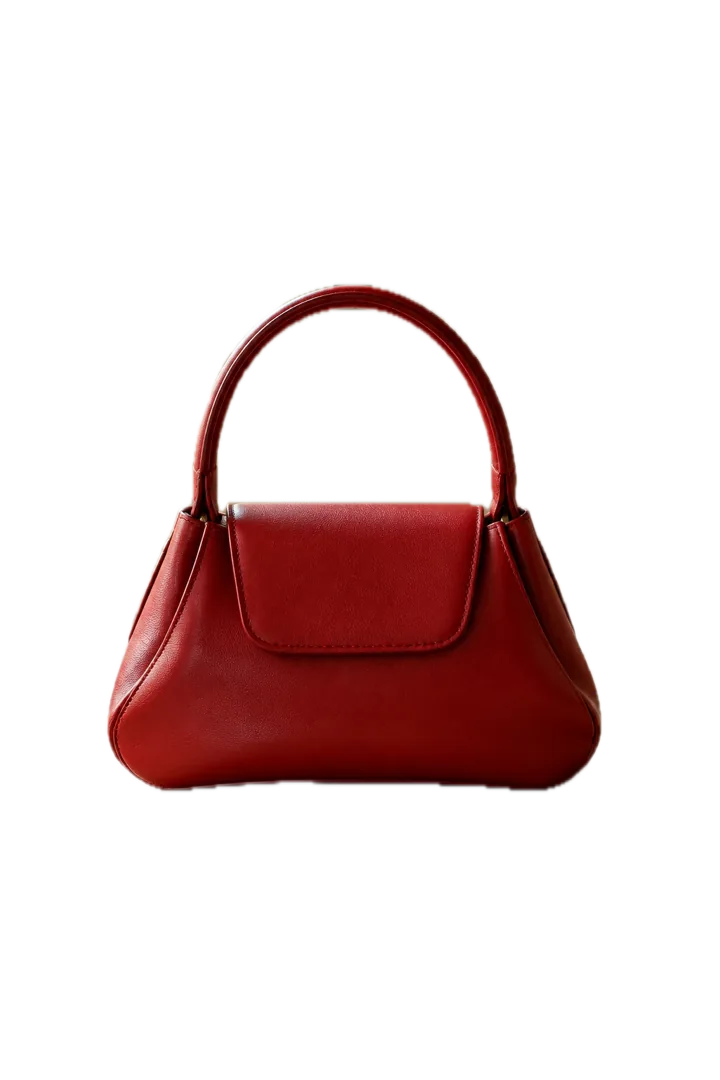 bag.png
Background colors here are website previews. With Background set to Clear, each file exports with a transparent background.
For stickers you send in Messages, your iPhone already does this for free. Open the photo in Photos, touch and hold the subject, then tap Add Sticker. Use this app when you need a saved, full-resolution file you can fix, print, or place in a design.
Printed sticker workflow
- Pick a sharp photo where the subject stands out from the background. Pets: sharp eyes and fur edges help a lot.
- Keep the subject(s) in the Subjects panel. For a two-pet sticker, keep both.
- Refine the edge. Printed stickers show every flaw. Zoom in on ears, whiskers, and hair and use short Restore/Erase strokes.
- Background: Clear. Export: PNG. You get a transparent PNG at the photo’s original resolution.
- Add the outline in your sticker tool. Import the PNG into your print shop’s uploader, a cutting-machine app, or a design app, and add the white border or cut line there.
It doesn’t add a white sticker border, cut line, or bleed, and it doesn’t lay out sticker sheets. Those depend on your printer or cutting machine, so they belong in that tool.
Print-size tips
- Most print services ask for about 300 pixels per inch at the final size. A 3-inch sticker needs roughly 900 pixels across the subject itself, not the whole photo.
- A small subject in a big photo has fewer pixels than it looks. For large stickers, start from a photo where the subject fills more of the frame.
- Check the PNG on both light and dark backgrounds before ordering. Halos show up on dark vinyl.