
When a solid color works
A flat color behind a subject is the quickest way to make a set of photos look like they belong together: a team page where every headshot uses the same blue, a profile picture that stands out in a list, product shots on your brand color, or a pet portrait on a bright background for a card. It also hides a messy room without the fake look of a blurred one.
Change the background color, step by step
- Pick a photo with a clear outline. Even light and some contrast between the subject and what’s behind it give the automatic mask the most to work with.
- Keep the subject. The app finds people, pets and objects on the device. Keep one, or several if two people should share the new background.
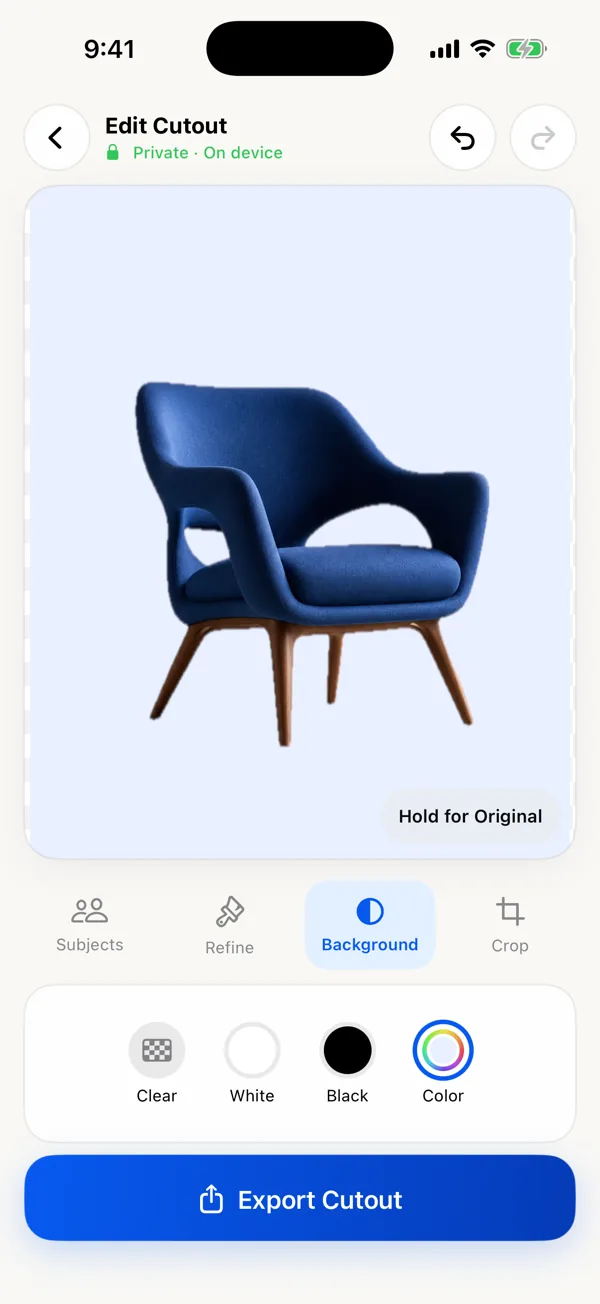
- Open Background and tap Color. Tap the color well to open Apple’s standard color picker, then choose a swatch, use the spectrum, or set exact values. Colors are solid, so there’s no opacity setting.
- Crop for the destination. Original, 1:1, 4:5 or 3:4. Square suits most profile pictures and marketplace thumbnails; 4:5 fills more of a phone feed.
- Fix the edge on the new color (see below). Touch and hold “Hold for Original” to compare.
- Export as JPEG or PNG and Share or Save to Photos.
Choosing the color
- Match a brand or a set. Use the same exact values for every photo in a group so they don’t drift. Write them down; the app edits one photo at a time.
- Contrast with the edge, not just the face. Dark hair disappears into navy or black, and blond hair into cream. Pick a color that separates from the outline.
- Plain white and black are one tap. The White and Black options are pure white and pure black, which suits marketplaces that ask for a white main image. For product rules, see the product photo page.
Clean the edge for the new color
A new background color shows problems that a transparent preview hides. Look for these, zoomed in:
- A halo: a thin rim of the old background around the outline. Use short Erase strokes along the edge with a small brush.
- Missing detail: an ear tip, a strand of hair or a strap that got cut off. Paint it back with Restore.
- Gaps: space between an arm and the body, or inside a mug handle, that still shows the old background. Erase it so the new color shows through.
Undo and redo let you try a stroke and step back. For fur and hair in detail, see fixing rough cutout edges.
Export: JPEG or PNG?
With a solid color, Auto exports JPEG at high quality, which keeps files small for profiles, listings and messages. Choose PNG when the exact color matters, for example to match a website background or a print template, because PNG is lossless. Both export at the original photo’s resolution after your crop.
Want to try other colors later? Export one copy with Clear as a transparent PNG too. Any design app can then put it on a new color without cutting it out again.
What the app doesn’t do
- No gradients, patterns, blurred or photo backgrounds; just clear, white, black or one solid color.
- No shadows, and no resizing of the subject within the frame.
- No batch mode. Twenty headshots means twenty edits, so services like Photoroom or Pixelcut, which list batch editing, are faster for a whole catalog.
- No passport or ID photo templates. Official photo rules are specific, so check the issuing agency’s requirements before editing one.
Free alternatives
iPhone’s built-in Lift Subject can copy the subject: touch and hold it in Photos, then tap Copy. Apple’s guide lists no background-color option, but you can paste the subject over a colored shape in an app such as Freeform or Keynote and export from there. That works, but you can’t fix the edge, and the output size depends on that app. Free apps that say they work offline, including one with color backgrounds, are listed in the offline background remover comparison.
Background Remover price, version and features checked against the U.S. App Store listing on November 8, 2026 (version 1.0.4, iOS 17 or later).