
Why your photo isn’t a PNG already
Apple’s camera writes photos in one of two formats. With Settings → Camera → Formats → High Efficiency you get HEIF files; with Most Compatible, new photos are JPEG. (ProRAW on Pro models saves DNG.) Both are photo formats built for small files. Neither can store transparency.
PNG is lossless and can hold an alpha channel, which is why logos, stickers, cutouts and design assets use it. The extension alone doesn’t make a picture transparent, though. A PNG of a beach photo still has the beach in it.
Free method: convert a photo to PNG with Shortcuts
Apple’s Shortcuts app has “transform” actions that convert content from one format to another (Apple’s own example is changing a PNG to a JPEG). A two-action shortcut does the reverse:
- Open Shortcuts and tap + to make a new shortcut.
- Add the Convert Image action (search for “convert”) and set the format to PNG.
- Add Save to Photo Album to keep it in Photos, or Save File to choose a folder in Files.
- In the shortcut’s details, turn on Show in Share Sheet so it appears when you share a photo.
- In Photos, open the picture, tap Share, and run the shortcut.
If your Files app shows Quick Actions → Convert Image when you touch and hold an image, that works too, without building anything.
photo.jpg to photo.png leaves a JPEG with the wrong name. Some apps open it; others reject it.Make a transparent PNG instead
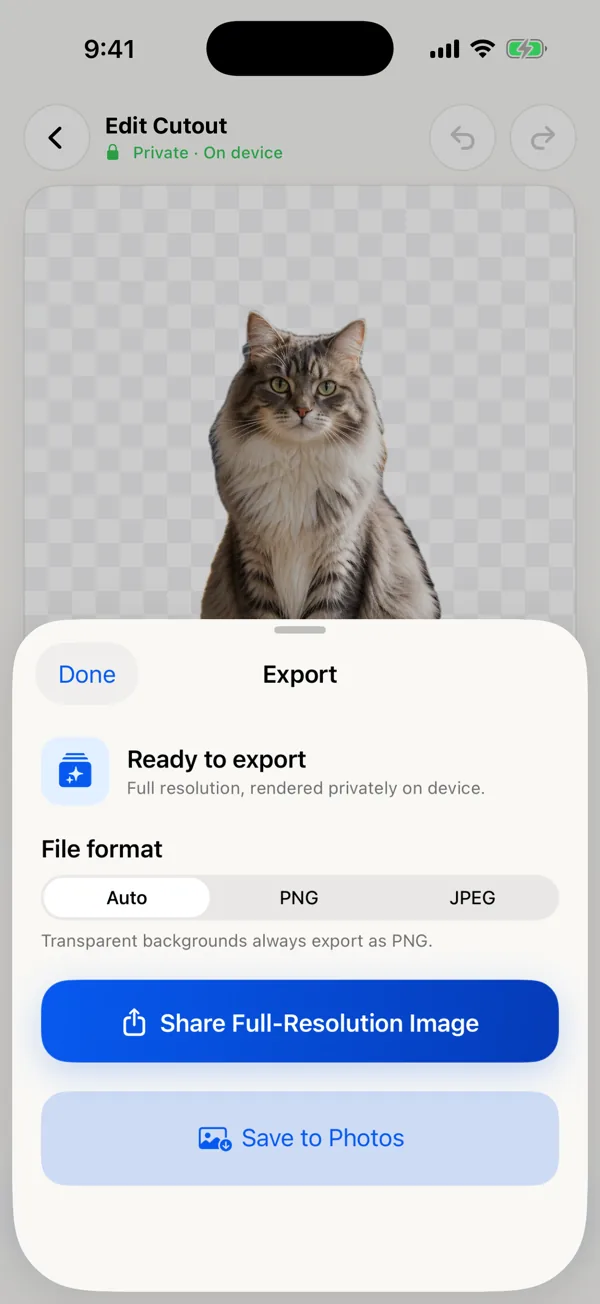
When people search for “how to make a PNG on iPhone” they often mean a cutout: the person, pet or product with nothing behind it. That takes a background remover. In Background Remover: PNG Cutout:
- Pick the photo. Apple Vision finds the people, pets or objects on the device.
- Keep the subject or subjects you want.
- Open Refine if the edge needs work. Restore paints detail back, Erase removes leftovers, and you can pinch to zoom.
- Leave Background on Clear.
- Open Export. With Clear, Auto and PNG both write a PNG with transparency at the original photo’s resolution.
- Tap Save to Photos (it asks only for add-only access) or Share → Save to Files to keep it as a file.
Need a PNG on a solid color instead? Choose White, Black or Color, then pick PNG in Export. With a solid background, Auto chooses JPEG, which gives a smaller file.
The app is a cutout editor, not a general converter. It always exports the subject you kept, so for a plain format change use Shortcuts.
Check that you really have a PNG
- Drop the file into the free PNG transparency checker. It runs in your browser, uploads nothing, and tells you whether the file is a real PNG, whether it has transparent pixels, and its dimensions. It also catches a JPEG renamed to .png.
- Check after sending, not only before. Messaging apps and social networks often re-encode images as JPEG. When the exact file matters, send it as a document or through Files, AirDrop or email.
- A white background in a preview isn’t proof that transparency was lost. Some viewers draw white behind transparent pixels. See why a transparent PNG looks white.
Limits and trade-offs
- File size: a full-resolution photo saved as PNG is usually several times larger than the HEIF or JPEG it came from. Use PNG when you need lossless quality or transparency, not for every photo.
- No quality gain: converting a JPEG to PNG doesn’t restore detail JPEG already discarded. It only stops further loss.
- One at a time: Background Remover edits one photo at a time. Shortcuts can convert a selection of several photos in one run.
- Edges: automatic cutouts can miss fine hair, fur, glass and low-contrast edges. Plan to touch them up with Restore and Erase.
Free alternatives for cutouts
For a quick cutout you only need to paste, touch and hold the subject in Photos and tap Copy, Share or Add Sticker. It’s free and built in. Apple’s guide doesn’t say what file format a lifted subject becomes, so if you need a PNG file, run the result through the checker. If you want a free app that says it works offline, see the offline background remover comparison, which includes two free options.
Background Remover price, version and features checked against the U.S. App Store listing on November 8, 2026 (version 1.0.4, iOS 17 or later).